
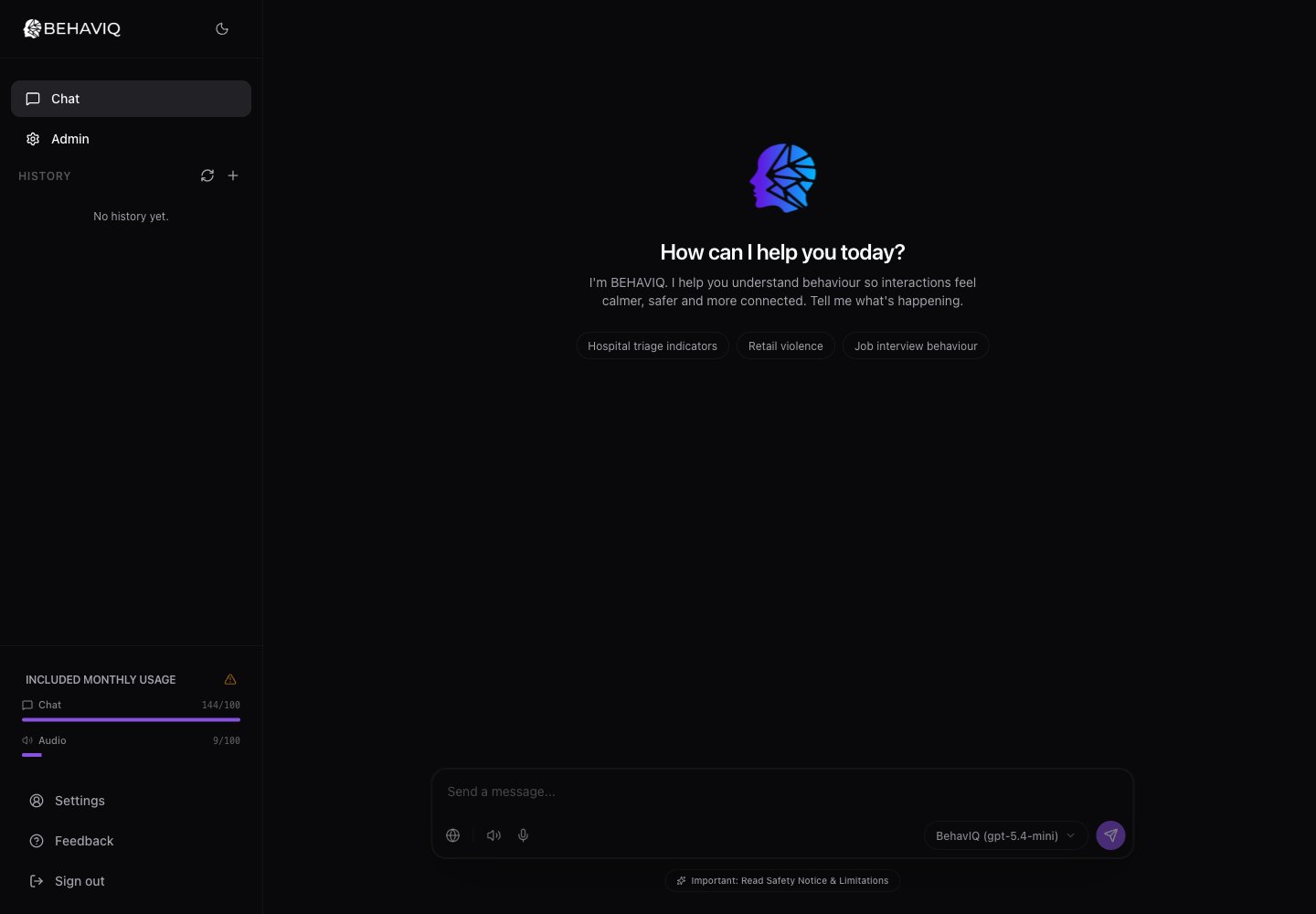
The chat page is where members ask BehavIQ for help with a situation, script, message, or interaction they want to handle. The BehavIQ chat page with the conversation list, message box, bot picker, and usage panel.

Start a conversation

Type into the message box and press send. BehavIQ streams the answer into the conversation so you can start reading before the full response is finished. Good prompts usually include the situation, what you want to achieve, and any limits BehavIQ should respect. For example:
  • “A passenger has refused to leave the bus and is getting louder. What should I say?”
  • “Rewrite this message so it sounds firm but not aggressive.”
  • “What warning signs should I watch for in this interaction?”

Choose an assistant

Use the picker next to the send button to choose the assistant for the next message. The picker shows the assistant name, not the underlying model name. If your workspace has one default assistant, most users can leave this alone. If admins add several assistants for different use cases, choose the one that matches the task before sending.

Use follow-up replies

After BehavIQ answers, it may suggest up to 3 follow-up prompts. You can use these as-is or edit them before sending.

Use audio

The chat bar includes voice controls when audio is available. You can use these to dictate a prompt or generate spoken audio from a response, depending on your workspace settings.

Review previous chats

The sidebar lists recent conversations for the active workspace. Select a conversation to reopen it. Chats belong to the workspace you are using at the time. If you switch workspaces, the chat list changes with it.

Send feedback

Use the feedback link in the app when something is confusing, wrong, or missing.